
My Shark Robot Vacuum Is Not Working [5 Minute Fix]

When your Shark robot vacuum stops working, the most common causes are power failures, charging contact problems, Wi-Fi connectivity issues, or a dirty side brush. This guide covers every major failure mode with specific troubleshooting steps and error code solutions.
Six common problems cause Shark robot vacuums to stop working: failure to turn on, charging errors, Wi-Fi connection failures, damaged side brushes, dirt picking inability, and squeaky noises. Each has a specific fix detailed below.
Shark Robot Vacuum Troubleshooting: Step-by-Step Process
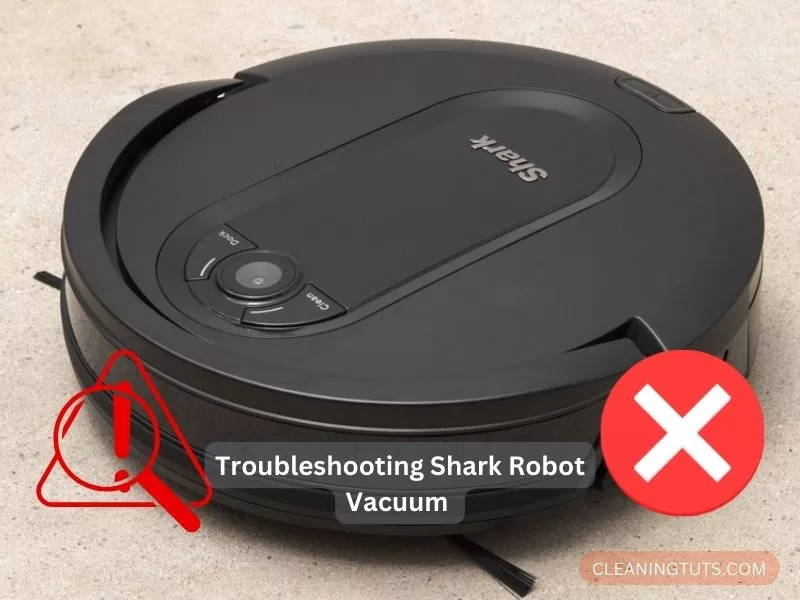
Shark robot vacuum troubleshooting requires isolating each potential issue to identify the root cause. The process involves systematic checks of power systems, charging contacts, Wi-Fi connectivity, and mechanical components.
When a Shark ION or IQ robot fails to turn on or charge, follow this diagnostic sequence to pinpoint the problem.
Shark robot vacuums share a common platform architecture, so these troubleshooting steps apply across models including the RV750, RV760, AV1002, and IQ series.
Before performing any troubleshooting, reset the unit. There is no dedicated reset button—hold the power button for 10 seconds to force a hard reset.
To reset via the SharkClean app, navigate to Settings and select Factory Reset. This erases all saved maps and settings within 30 seconds. Reconnect the vacuum to your Wi-Fi network after the reset completes.
Shark Robot Vacuum Fails to Turn On: Power and Dock Diagnostics
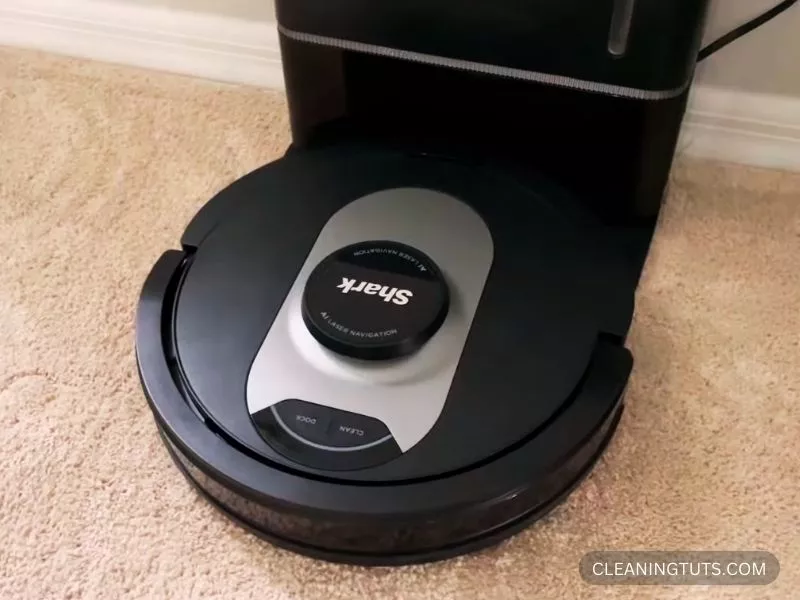
When a Shark vacuum refuses to power on, the issue stems from three sources: depleted battery, failed dock connection, or damaged power circuitry.
First, verify the vacuum docks properly. The unit requires correct alignment with charging contacts—if positioned incorrectly on the dock, it simply will not charge. A blue indicator light on the top confirms successful docking.
Check the docking sensors with a microfiber cloth—dirt buildup on infrared sensors prevents proper dock detection. Wipe the sensor window on the front bumper and the three cliff sensors on the bottom.
Dirty sensors are a leading cause of docking failure. A quick wipe with a microfiber cloth restores proper sensor function in most cases.
Ben Hormozi (Reddit User)
Other causes include damaged power cords, faulty outlets (test with a multimeter—outlets should supply 120V in North America), or tripped circuit breakers. If the unit is completely unresponsive after 2 hours of charging, internal battery failure is likely.
Shark Robot Vacuum Wi-Fi Connection Failure: Router and App Fixes
Shark robot vacuums with Wi-Fi capability (models RV750 and above) connect to 2.4 GHz networks only—5 GHz networks are not supported. This is the most common connection failure.

To resolve Wi-Fi issues, power cycle the robot: flip the dock’s power switch to OFF, hold the side power button in OFF position for 10 seconds, then turn the dock power back on.
Ensure your router broadcasts a 2.4 GHz SSID. Many modern routers broadcast both frequencies under one name—split the bands or create a separate 2.4 GHz network for vacuum setup.
Shark Robot Vacuum Charging Issues: Error 24 Explained
Error code 24 indicates charging failure in Shark IQ robot vacuums. The display shows a solid red indicator combined with a flashing blue dock light.

Push the vacuum firmly toward the dock to ensure proper contact alignment. A blue flashing light confirms charging initiation within 30 seconds.

Clean charging contacts with a dry cloth—the contacts use spring-loaded pins that can accumulate debris. Check the robot’s travel path to the dock; if obstacles block the route, the vacuum cannot dock autonomously.
If cleaning and alignment do not resolve error 24 within 24 hours, the charging circuitry requires professional repair.
Shark Robot Vacuum Side Brush Not Spinning: Motor and Debris Removal

Side brushes extend Shark robot vacuums’ cleaning reach into corners and along edges. When they fail to spin, the robot loses approximately 15% of its effective cleaning path.
The primary cause is tangled debris wrapped around the brush motor shaft—hair, thread, and carpet fibers commonly accumulate. Remove the brush by pulling it straight up, then use scissors to cut away tangled material.
If the brush remains immobile after cleaning, the motor has failed. Replacement side brushes cost $8–$15 and snap into place without tools.
For robots over 3 years old with persistent side brush issues, motor replacement may not be cost-effective—consider replacement if repair costs exceed 50% of a new unit’s price.
Shark Robot Vacuum Not Picking Up Dirt: Filter and Brush Maintenance
When a Shark robot vacuum leaves dirt trails or fails to collect debris, the air filtration system is clogged. HEPA filters lose efficiency after 6–12 months of use depending on household traffic.
To restore suction, tap the dustbin empty over a trash bin, then remove filters for inspection. Replace foam filters every 3–6 months and HEPA filters every 12 months. Some Shark models (marked “washable”) allow rinsing foam filters—allow 24 hours of air drying before reinstalling.
Also inspect the rubber seal around the dustbin—cracks or deformation reduce suction by allowing air bypass.
Shark Robot Vacuum Squeaky Noises: Lubrication and Belt Inspection
Squeaking or grinding noises indicate friction in the brush roll bearings or a slipping drive belt. Unplug the unit and inspect the brush roll cylinder for debris wound around the axle ends.
Remove accumulated hair and debris from both brush roll ends. If noise persists, apply a small amount of machine oil (ISO VG 15–32) to visible bearings. Do not use WD-40 or household oils—these attract dust and gum up within days.
Shark Robot Vacuum Error Codes Reference
| Error Code | Issue | Fix |
|---|---|---|
| E1 | Cliff sensor malfunction | Clean cliff sensors with microfiber cloth |
| E2 | Brush roll jammed | Remove debris from brush roll ends |
| E3 | Side brush failure | Clean motor shaft or replace brush ($8–15) |
| E4 | Wheel obstruction | Clear debris from drive wheels |
| E5 | Fan motor failure | Contact Shark support for repair |
| 24 | Charging failure | Clean dock contacts, check power supply |
| LF | Low battery during cleaning | Return to dock, wait 1 hour, restart |
Final Recommendations
Regular maintenance prevents most Shark robot vacuum failures. Clean sensors weekly, empty the dustbin after each cycle, and replace filters on schedule. Keep the robot’s firmware updated via the SharkClean app.
For persistent issues beyond these fixes, consult the Shark vacuum troubleshooting guide at CleaningTuts’ Vacuum Troubleshooting Hub or contact SharkNinja support directly.
Error codes from the user manual provide the most accurate diagnostics—keep your model-specific documentation accessible for future troubleshooting sessions.
References
- SharkNinja Operating LLC. (2024). Shark ION Robot Vacuum Series User Guide. SharkNinja. https://support.sharkninja.com/
- Environmental Protection Agency. (2023). Residential Air Cleaners: A Technical Summary. EPA. https://www.epa.gov/indoor-air-quality-iaq/residential-air-cleaners-technical-summary
- National Sanitation Foundation. (2024). NSF International Vacuum Cleaner Testing Protocols. NSF International. https://www.nsf.org/testing/home-products/vacuum-cleaners


