

How to Fix Shark IQ Robot Error Code 24?

Shark IQ Robot error code 24 indicates a low battery condition or a charging failure that prevents the vacuum from powering on. The robot displays error 24 through two distinct signals: a flashing red battery icon signals a depleted battery requiring at least 5 hours of charging on the base, while simultaneous red “!” and blue dock indicators signal a charging system fault that requires inspection of the power cord and dock connections.
Smart robot vacuums like the Shark IQ series represent a significant advancement in home cleaning technology, with self-cleaning and self-docking capabilities that reduce manual intervention. However, even premium appliances encounter operational errors — and error code 24 is among the most common issues reported by Shark IQ owners. This guide covers every troubleshooting step to restore normal charging operation.
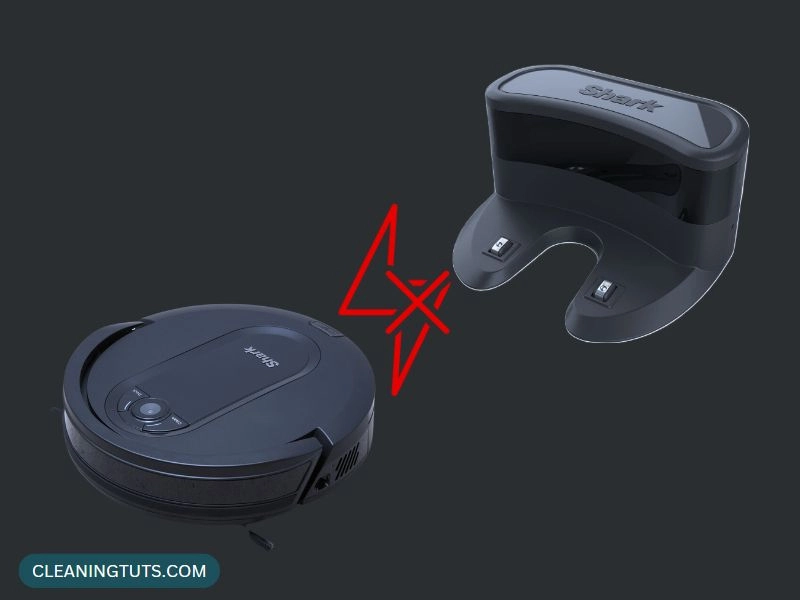
Shark IQ Error Code 24: Two Conditions, Two Remedies
Error code 24 on a Shark IQ robot vacuum always relates to the battery or charging system, but the root cause differs depending on which indicator light pattern appears.
| Indicator Pattern | Meaning | Required Action |
|---|---|---|
| Battery icon flashing red | Low battery — depleted cell | Place on charging base for 5 hours minimum |
| Red “!” + Blue dock flashing simultaneously | Charging system fault | Inspect base power cord and connections |
| Replace LED solid red | Battery needs replacement | Order genuine Shark AV1002 replacement battery |
| CLEAN flashes red + “!” flashes red | Charger malfunction | Contact Shark service center immediately |
The Shark IQ AV1002 series uses a 14.4V 2600mAh lithium-ion battery pack. Standard full charge time is approximately 5 hours when the battery is fully depleted. Lithium-ion batteries self-discharge at a rate of approximately 1.5–2% per month, so a vacuum left idle for extended periods may trigger error 24 upon next use.

Low Battery Error: Flashing Red Battery Icon
When the battery icon on the Shark IQ flashes red, the battery has discharged below the threshold needed for startup. This is the most common trigger for error code 24 and the easiest to resolve.
- Locate the charging base and confirm it is plugged into a working 120V AC outlet
- Lift the robot and place it manually on the charging base
- Verify the base indicator light turns blue within 30 seconds
- Allow the vacuum to charge for a minimum of 5 hours before attempting to power on
Do not use a power strip or surge protector to supply the charging base — connect it directly to a wall outlet. Power strips may limit current delivery and prevent proper charging cycles.
Charging Fault Error: Red “!” and Blue Dock Flashing
When both the red “!” alert icon and the blue dock indicator flash simultaneously, the robot detects a charging system fault rather than a depleted battery. This requires systematic inspection of the charging hardware.
- Inspect the base power cord for visible damage, kinks, or fraying
- Unplug and firmly reconnect the power cord at both the base and wall outlet
- Confirm the outlet is active by testing with another device
- Retry charging after each step to identify the faulty component
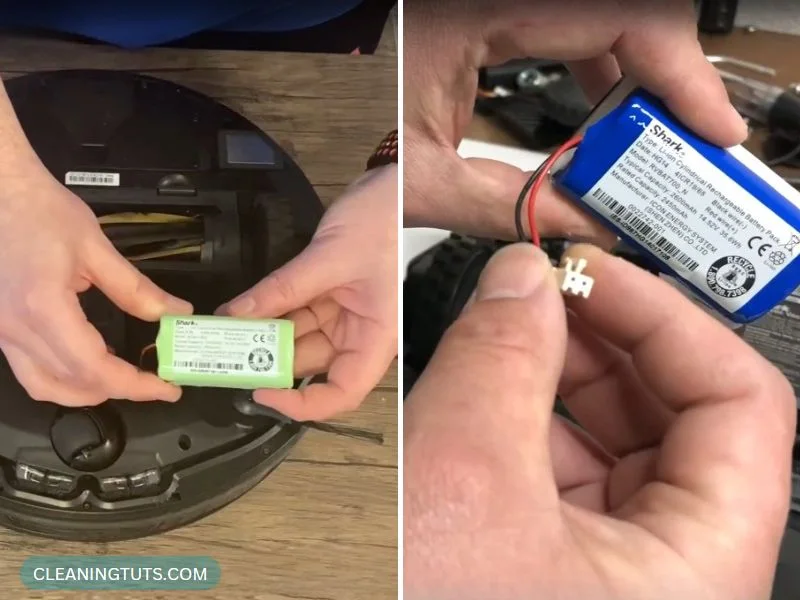
Diagnosing Shark IQ Battery Issues
Beyond the immediate error 24 signal, several battery-related symptoms indicate whether a charge cycle will resolve the issue or if hardware replacement is necessary.
Two Flashing Lights on Battery: Overheating
If two indicator lights flash on the battery pack, the cells have entered thermal protection mode. Lithium-ion batteries built to the 18650 standard (used in the Shark IQ series) trigger this safety response when internal temperature exceeds 50°C (122°F) during charging. The battery requires 30–60 minutes to cool to ambient temperature before charging resumes. Charging below 5°C (41°F) risks lithium plating — permanent damage that reduces capacity.
Battery Slip and Connection Loss
The battery pack inside the Shark IQ sits in a friction-fit cradle. Vibration from regular operation can cause the pack to shift over time, breaking the contact between the battery terminals and the vacuum’s internal bus bars.
- Power off the vacuum and flip it to expose the underside battery compartment
- Open the battery compartment cover and remove the pack
- Inspect terminal contacts for corrosion, dust accumulation, or oxidation
- Clean contacts with a dry microfiber cloth — for stubborn residue, use 90%+ isopropyl alcohol on a cotton swab
- Reinsert the pack firmly until it clicks into the cradle
- Reconnect the battery plug to the vacuum’s main board and test
If the battery shows physical damage — swelling, melting, or leaking — discontinue use immediately and replace with a genuine Shark AV1002 battery pack. Swollen lithium-ion cells present a fire hazard and must never be charged.
Once reconnected, place the vacuum on the charging base and confirm the base indicator turns blue within 30 seconds. If the error recurs after a full 5-hour charge, the battery has exceeded its usable cycle life.
Troubleshooting Shark IQ Charging Failures
When the battery and connections are confirmed functional but the robot still fails to charge, the issue lies with one of four charging pathway components. Systematic elimination identifies the faulty part.
Dirty Proximity Sensors and Infrared Array
The Shark IQ navigates back to its dock using an infrared guidance system located behind the front bumper. Dust, pet hair, and debris accumulation on these sensors prevents the robot from accurately locating the charging station.
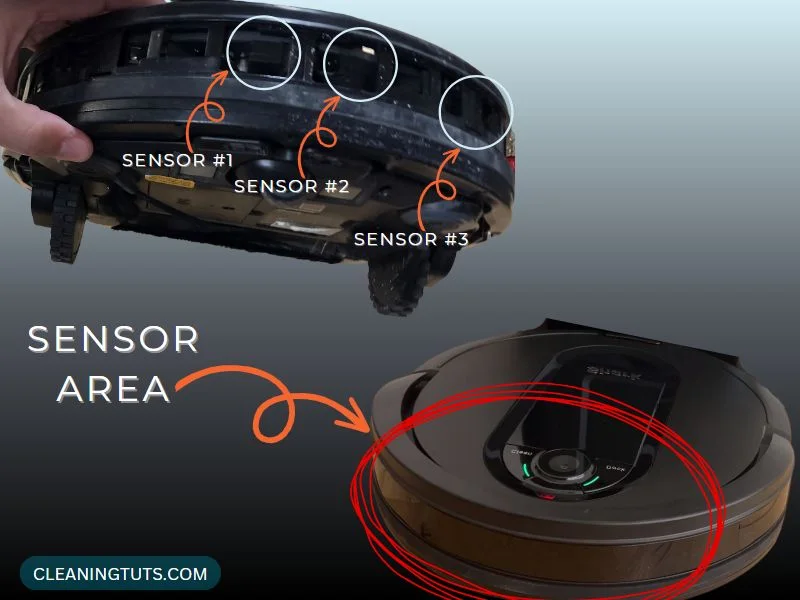
- Press and hold the release tabs on both sides of the front bumper to remove it
- Locate the infrared LED array and proximity sensors behind the bumper housing
- Clean the sensor window with a dry microfiber cloth
- Use a can of compressed air to blow dust from recessed areas
- Reassemble the bumper and test docking behavior
Worn or Stuck Charging Pin Springs
Two spring-loaded metal pins on the charging base make contact with corresponding plates on the vacuum’s underside. Over time, the springs lose tension and fail to push the pins outward with sufficient force.
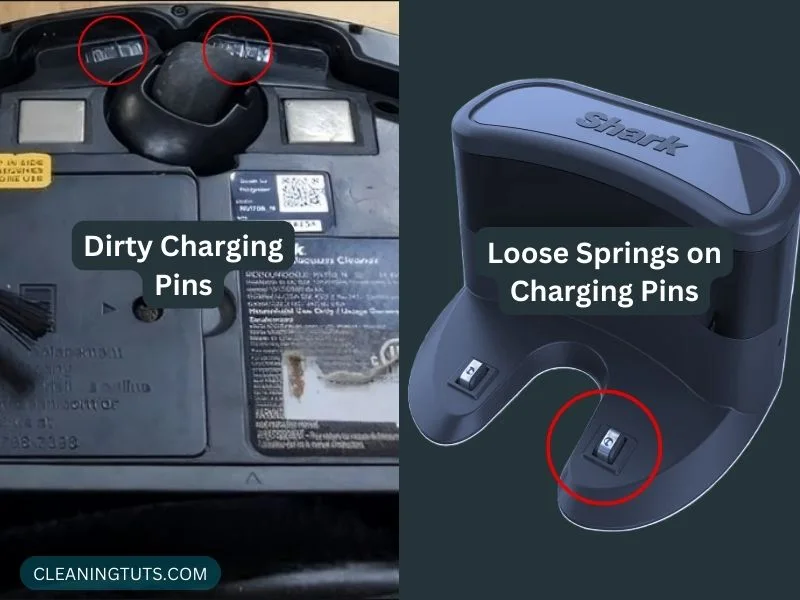
Test spring tension by pressing each pin with a finger. A healthy spring provides firm resistance and springs back to its extended position within 0.5 seconds. A pin that sticks, sinks flush with the housing, or fails to return indicates a broken spring — the base unit requires replacement.
Note that only one pin making contact is insufficient for charging. Both springs must be functioning simultaneously for the circuit to complete and the battery to accept a charge.
Dusty Dock Infrared Window
The charging dock uses a dark window (similar to polarized sunglasses) to emit infrared signals that guide the robot home. Dust accumulation on this window blocks the signal and prevents the robot from executing the docking sequence.
- Disconnect the charging base from power
- Wipe the dock’s infrared window with a dry microfiber cloth
- For sticky residue, use a 70%+ isopropyl alcohol wipe
- Allow the surface to dry fully before restoring power
Improper Manual Docking Alignment
When manually placing the robot on the charging base, alignment is critical. The charging plates on the vacuum’s underside must make simultaneous contact with both pins on the base.
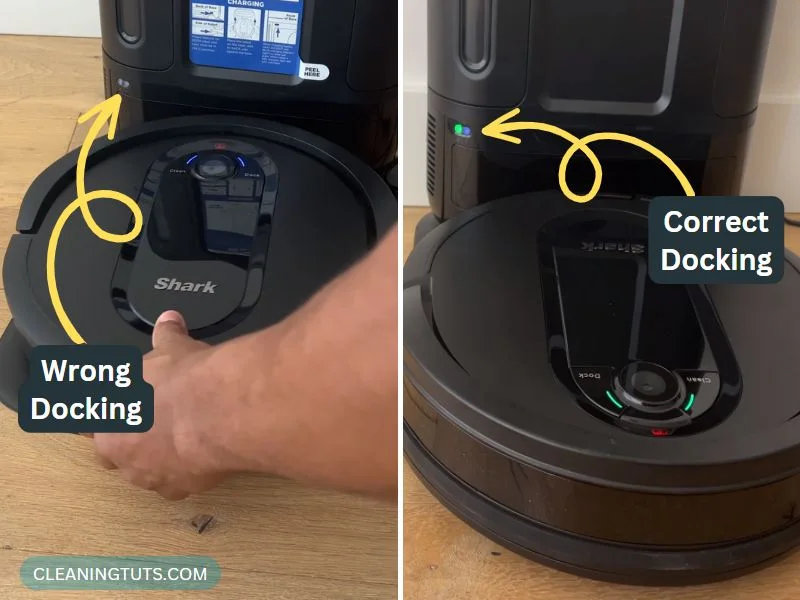
- Position the robot with the bumper facing forward toward the dock
- Center the vacuum on the base — offset placement prevents pin contact
- Leave a gap of approximately 1.3 cm (0.5 inches) between the robot and dock initially
- Slide the robot forward until the pins engage — you should feel slight resistance
- Confirm a blue flashing light appears on the robot within 10 seconds
If a red light appears instead, the placement is incorrect. Lift and reposition. A green light indicates partial contact — hold the robot in place for 15–20 seconds to establish full connection, then release. Charging begins when the light turns blue.
Read Also: Troubleshoot All Shark IQ AV Series Robot Vacuum Issues by Error Codes
When to Replace the Shark IQ Battery
Shark IQ lithium-ion batteries typically deliver 400–800 full charge cycles before capacity drops below 75% of rated capacity. At that point, the battery no longer holds sufficient charge to power a full cleaning cycle and may trigger error 24 repeatedly despite appearing to charge.
Signs that battery replacement is necessary include runtime dropping below 30 minutes on a full charge, the vacuum shutting down mid-cycle without warning, or error 24 appearing within minutes of being removed from the base. Purchase only genuine Shark AV1002 replacement batteries from authorized retailers — third-party packs may not meet the 14.4V 2600mAh specification and can trigger charging errors.
Quick-Reference: Shark IQ Error Code 24 Troubleshooting
| Symptom | Likely Cause | Fix |
|---|---|---|
| Battery icon flashing red | Depleted battery | Charge 5+ hours on base |
| Battery icon solid red after 5 hours | Battery failed to accept charge | Check outlet and power cord; replace battery if needed |
| Red “!” + blue dock flashing | Charging system fault | Inspect base cord and connections |
| Two lights flashing on battery | Overheating (50°C+) | Let cool 30–60 minutes |
| Robot docks but won’t charge | Worn spring pins on base | Test springs; replace base if failed |
| Robot can’t locate dock | Dirty IR sensors/bumpers | Clean with compressed air and microfiber |
| Replace LED solid red | Battery end-of-life | Replace with Shark AV1002 battery |
| CLEAN red + “!” red simultaneously | Charger failure | Contact Shark service center |
Conclusion
Shark IQ Robot error code 24 stems from one of two root causes: a depleted battery or a charging system fault. In most cases, a 5-hour charge cycle resolves the low-battery variant. The charging fault requires inspection of the power cord, dock alignment, spring pin tension, and infrared sensors.
When troubleshooting fails to restore normal operation, battery degradation is the most likely culprit. Lithium-ion cells in the Shark IQ AV1002 series typically last 400–800 full charge cycles — approximately 1–3 years for average households. Replacing with a genuine Shark AV1002 14.4V 2600mAh pack restores original runtime and eliminates chronic error 24 recurrence.
For persistent charging errors that survive battery replacement and dock inspection, contact Shark customer support at 1-800-798-7398 or submit a service request through sharkclean.com to arrange a professional repair assessment.
References
- SharkNinja Operating LLC. (2024). Shark IQ AV Series Error Codes and Troubleshooting. CleaningTuts. https://cleaningtuts.com/shark-iq-av-error-codes-and-fixes/
- Battery University. (2023). Lithium-ion Battery Charging. Cadex Electronics Inc. https://batteryuniversity.com/article/bu-408-charging-lithium-ion
- Battery University. (2023). Lithium-ion Battery Life. Cadex Electronics Inc. https://batteryuniversity.com/article/bu-808-lithium-ion-battery-life
- Wikipedia. (2024). Lithium-Ion Battery. Wikimedia Foundation. https://en.wikipedia.org/wiki/Lithium-ion_battery


