
Roomba Vacuum Will Not Update Software Until You Do This!

Summary
Roomba software update failures stem from three root causes: outdated iRobot HOME apps, depleted batteries, and corrupted update caches. Update the app first, replace the battery second, and factory reset third. Most issues resolve within the first two steps. For persistent failures after a factory reset, contact iRobot Customer Support with your serial number and proof of purchase.
References
- iRobot. (2024). Roomba Vacuum Support and User Guides. iRobot Corporation.
- iRobot. (2024). iRobot HOME App Download and Setup. iRobot Corporation.
- Roomba Troubleshooting Master Hub — All Roomba repair guides in one place
- Vacuum Troubleshooting Master Hub — General vacuum repair for all brands
- Roomba Vacuum Not Working: Complete Fix Guide
Summary
Roomba software update failures stem from three root causes: outdated iRobot HOME apps, depleted batteries, and corrupted update caches. Update the app first, replace the battery second, and factory reset third. Most issues resolve within the first two steps. For persistent failures after a factory reset, contact iRobot Customer Support with your serial number and proof of purchase.
References
- iRobot. (2024). Roomba Vacuum Support and User Guides. iRobot Corporation.
- iRobot. (2024). iRobot HOME App Download and Setup. iRobot Corporation.
A Roomba vacuum fails to update its software when connected to a 5 GHz Wi-Fi network, running an outdated iRobot HOME app, or suffering from a depleted battery or internal system fault. These issues prevent the update process from completing and cause the vacuum to revert to previous firmware versions.
Roomba software updates require a stable 2.4 GHz Wi-Fi connection, the latest version of the iRobot HOME app, and a fully charged battery. When any of these requirements fail, the update stalls or cancels mid-process. This guide provides definitive solutions for each cause.
Common Causes of Roomba Software Update Failure
Roomba software updates fail for three primary reasons. Identifying the specific cause determines which solution applies:
Step-by-Step Solutions for Roomba Software Updates
Apply these solutions in order. Most update failures resolve at Step 1 or Step 2. The factory reset in Step 3 addresses persistent software corruption.
Solution 1: Update the iRobot HOME App
Outdated versions of the iRobot HOME app cause communication failures during software updates. The app handles firmware delivery to the robot and must be current. Update instructions differ by mobile OS:
Solution 2: Replace the Roomba Battery
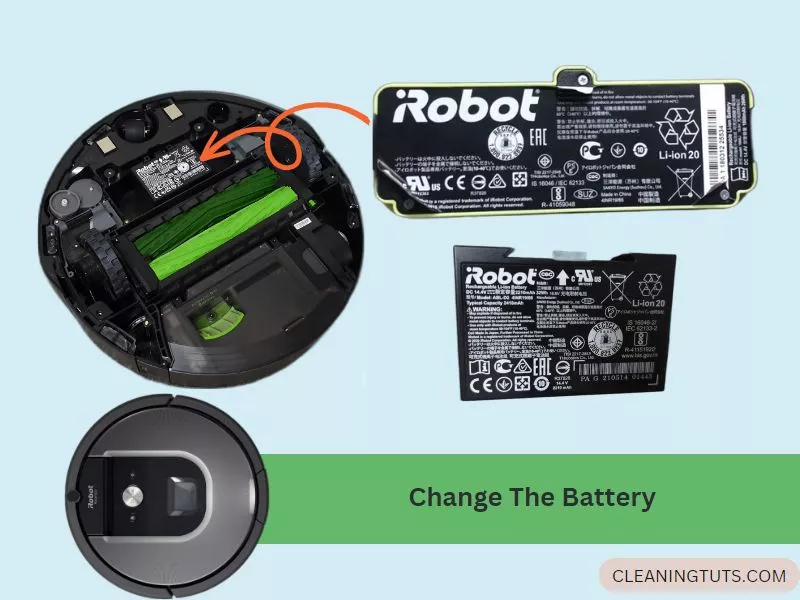
A lithium-ion battery below 20% charge causes update interruptions. Roomba requires a minimum charge level to safely write firmware. iRobot uses 1800–2600 mAh batteries depending on the model. Follow these steps to replace the battery:
Solution 3: Factory Reset and Reboot the Vacuum
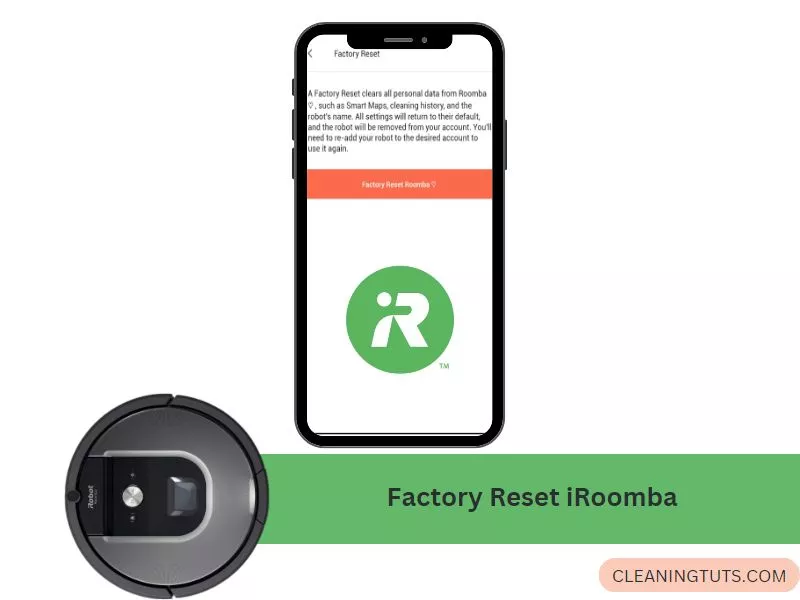
A factory reset clears corrupted update caches and resets network configuration. This resolves software corruption that blocks update installation. The process takes 15–20 minutes total.
Troubleshooting: Software Updates Not Appearing
If the iRobot HOME app shows no available updates or the update stalls at 0%, apply these diagnostic steps in sequence:
- Move the Charging Base closer to your Wi-Fi router. Roomba requires a signal strength of at least -70 dBm for stable update downloads. Check your phone’s Wi-Fi indicator—3 bars minimum.
- Verify your router broadcasts 2.4 GHz. In the iRobot HOME app, go to More > Settings > Wi-Fi Settings > Robot Wi-Fi Details. A network name ending in “5G” or “5GHz” will not work. Change your router settings or create a separate 2.4 GHz network.
- Power cycle your router: unplug for 10 seconds, reconnect, and wait 2 minutes for the full boot sequence. This clears temporary DHCP conflicts that block update servers.
Roomba Software Update Duration
Standard software updates require 25 minutes to 5 hours depending on the update size and your Wi-Fi speed. Major firmware releases (version 3.x to 4.x, for example) take 3–5 hours on a 10 Mbps connection. Updates exceeding 5 hours indicate a network or hardware problem requiring a factory reset.
Related Roomba Troubleshooting Guides
For other Roomba issues, these guides provide step-by-step solutions:
- Roomba Troubleshooting Master Hub — All Roomba repair guides in one place
- Vacuum Troubleshooting Master Hub — General vacuum repair for all brands
- Roomba Vacuum Not Working: Complete Fix Guide
Summary
Roomba software update failures stem from three root causes: outdated iRobot HOME apps, depleted batteries, and corrupted update caches. Update the app first, replace the battery second, and factory reset third. Most issues resolve within the first two steps. For persistent failures after a factory reset, contact iRobot Customer Support with your serial number and proof of purchase.
References
- iRobot. (2024). Roomba Vacuum Support and User Guides. iRobot Corporation.
- iRobot. (2024). iRobot HOME App Download and Setup. iRobot Corporation.
- Roomba Troubleshooting Master Hub — All Roomba repair guides in one place
- Vacuum Troubleshooting Master Hub — General vacuum repair for all brands
- Roomba Vacuum Not Working: Complete Fix Guide
Summary
Roomba software update failures stem from three root causes: outdated iRobot HOME apps, depleted batteries, and corrupted update caches. Update the app first, replace the battery second, and factory reset third. Most issues resolve within the first two steps. For persistent failures after a factory reset, contact iRobot Customer Support with your serial number and proof of purchase.
References
- iRobot. (2024). Roomba Vacuum Support and User Guides. iRobot Corporation.
- iRobot. (2024). iRobot HOME App Download and Setup. iRobot Corporation.
A Roomba vacuum fails to update its software when connected to a 5 GHz Wi-Fi network, running an outdated iRobot HOME app, or suffering from a depleted battery or internal system fault. These issues prevent the update process from completing and cause the vacuum to revert to previous firmware versions.
Roomba software updates require a stable 2.4 GHz Wi-Fi connection, the latest version of the iRobot HOME app, and a fully charged battery. When any of these requirements fail, the update stalls or cancels mid-process. This guide provides definitive solutions for each cause.
Common Causes of Roomba Software Update Failure
Roomba software updates fail for three primary reasons. Identifying the specific cause determines which solution applies:
Step-by-Step Solutions for Roomba Software Updates
Apply these solutions in order. Most update failures resolve at Step 1 or Step 2. The factory reset in Step 3 addresses persistent software corruption.
Solution 1: Update the iRobot HOME App
Outdated versions of the iRobot HOME app cause communication failures during software updates. The app handles firmware delivery to the robot and must be current. Update instructions differ by mobile OS:
Solution 2: Replace the Roomba Battery
A lithium-ion battery below 20% charge causes update interruptions. Roomba requires a minimum charge level to safely write firmware. iRobot uses 1800–2600 mAh batteries depending on the model. Follow these steps to replace the battery:
Solution 3: Factory Reset and Reboot the Vacuum
A factory reset clears corrupted update caches and resets network configuration. This resolves software corruption that blocks update installation. The process takes 15–20 minutes total.
Troubleshooting: Software Updates Not Appearing
If the iRobot HOME app shows no available updates or the update stalls at 0%, apply these diagnostic steps in sequence:
- Move the Charging Base closer to your Wi-Fi router. Roomba requires a signal strength of at least -70 dBm for stable update downloads. Check your phone’s Wi-Fi indicator—3 bars minimum.
- Verify your router broadcasts 2.4 GHz. In the iRobot HOME app, go to More > Settings > Wi-Fi Settings > Robot Wi-Fi Details. A network name ending in “5G” or “5GHz” will not work. Change your router settings or create a separate 2.4 GHz network.
- Power cycle your router: unplug for 10 seconds, reconnect, and wait 2 minutes for the full boot sequence. This clears temporary DHCP conflicts that block update servers.
Roomba Software Update Duration
Standard software updates require 25 minutes to 5 hours depending on the update size and your Wi-Fi speed. Major firmware releases (version 3.x to 4.x, for example) take 3–5 hours on a 10 Mbps connection. Updates exceeding 5 hours indicate a network or hardware problem requiring a factory reset.
Related Roomba Troubleshooting Guides
For other Roomba issues, these guides provide step-by-step solutions:
- Roomba Troubleshooting Master Hub — All Roomba repair guides in one place
- Vacuum Troubleshooting Master Hub — General vacuum repair for all brands
- Roomba Vacuum Not Working: Complete Fix Guide
Summary
Roomba software update failures stem from three root causes: outdated iRobot HOME apps, depleted batteries, and corrupted update caches. Update the app first, replace the battery second, and factory reset third. Most issues resolve within the first two steps. For persistent failures after a factory reset, contact iRobot Customer Support with your serial number and proof of purchase.
References
- iRobot. (2024). Roomba Vacuum Support and User Guides. iRobot Corporation.
- iRobot. (2024). iRobot HOME App Download and Setup. iRobot Corporation.


