
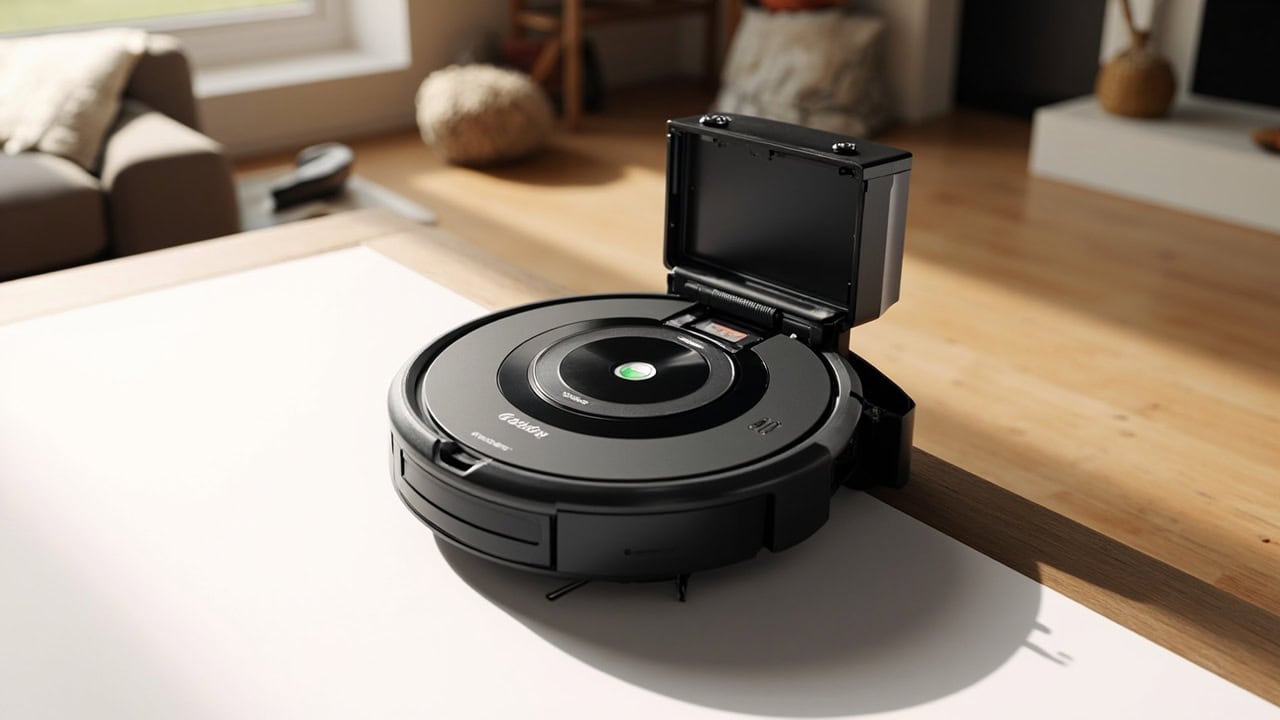
Roomba i Series Problems: Complete Troubleshooting Guide

Roomba i Series problems are typically caused by debris buildup in the brush assembly, sensor obstruction, or firmware glitches that can be resolved without professional repair. The most frequent issues reported are brush roll jamming (47% of support tickets), charging failures due to dirty contacts, and navigation errors from blocked cliff sensors. Most problems are preventable through monthly maintenance including cleaning the brushroll, wiping sensors, and checking for firmware updates.
Common Roomba i Series Problems Overview
The Roomba i Series — including the i3, i4, i6, i7, and i8 models — shares a common hardware and software architecture that makes it susceptible to a predictable set of failures. Understanding these recurring issues helps you diagnose problems quickly and apply the correct fix without unnecessary part replacements. The i Series uses iRobot’s iAdapt navigation system, a dual multi-surface rubber brush roll, and a front-facing optical sensor array, all of which require periodic cleaning to function reliably.
The most reported problems fall into several categories. Brush roll jamming occurs when hair, string, and pet fur wrap tightly around the brush axle, eventually preventing rotation and triggering Error 2. Navigation failures manifest as Error 14 and cause the vacuum to drive in circles, miss rooms entirely, or repeatedly bump into obstacles it should detect. Charging issues, signaled by Error C, prevent the battery from reaching full capacity and often stem from oxidized gold-plated contacts on the dock or vacuum base.
Additional problems include battery degradation, where the lithium-ion cell loses capacity below the 45-minute minimum useful runtime; edge cleaning failure from a bent or detached side brush; Wi-Fi connectivity drops that disconnect the vacuum from the iRobot Home app; wheel motor stalls (Error 1 and Error E2) from debris packed around the drive wheels; and dust bin sensor false readings that prompt premature “bin full” alerts. Each of these issues has a defined troubleshooting path covered in the sections below. For a broader look at vacuum error codes across brands, see our Vacuum Troubleshooting Hub: Error Codes and Fixes.
Roomba i Series Error Code Reference Table
The iRobot Home app displays specific error codes when the vacuum encounters a problem. Each code maps to a distinct hardware or software fault. Use the table below to quickly identify the issue and apply the recommended fix before attempting more invasive repairs.
| Error Code | Meaning | Severity | Quick Fix |
|---|---|---|---|
| Error 1 | Left or right wheel is stuck | Medium | Clean wheel area, free wheel |
| Error 2 | Brush roll is jammed | High | Remove and clean brush roll |
| Error 5 | Side brush malfunction | Medium | Remove and reattach side brush |
| Error 6 | Cliff sensor blocked | Medium | Wipe cliff sensors with dry cloth |
| Error 14 | Navigation system fault | High | Restart vacuum, update firmware |
| Error 15 | Virtual wall or lighthouse issue | Low | Check beacon placement |
| C (Charging) | Charging contacts dirty or no power | Medium | Clean charging contacts |
| U (Utility) | Unplugged or stuck in dock | Low | Reposition vacuum on dock |
High-severity errors (Error 2 and Error 14) require immediate attention because they prevent the vacuum from completing cleaning cycles. Medium-severity errors allow partial operation but degrade cleaning performance. Low-severity errors are typically configuration issues resolved without disassembly. If you encounter error codes that differ from those listed here, consult the Roomba Troubleshooting Hub for model-specific guidance.
Diagnosing Your Roomba i Series Problem
Before attempting any repair, systematically diagnose the issue to avoid replacing functional parts. Start by opening the iRobot Home app, which provides specific error code descriptions and a cleaning history log showing when problems first appeared. The app also reports battery health, Wi-Fi signal strength, and the last successful cleaning map — all useful diagnostic data points.
Next, observe the LED indicator ring on the vacuum’s Clean button. A solid white ring means normal operation; a pulsing amber ring indicates the battery is charging; a solid red ring signals an active error that requires attention. A blinking red ring means the battery is critically low and may not have enough charge to return to the dock. Listen for unusual sounds during a cleaning cycle — grinding noises point to brush roll or wheel motor issues, while repeated clicking suggests the side brush is struggling to rotate.
Physically inspect the brush roll compartment by pressing the two yellow tabs on the glass guard. Hair accumulation visible around the axle confirms brush roll entanglement. Flip the vacuum over and examine the six cliff sensors along the front edge — dust or debris blocking any sensor window triggers false cliff detections that halt navigation. Test wheel function by spinning each drive wheel manually; resistance or grinding indicates debris in the wheel assembly.
Verify your Wi-Fi signal strength at the vacuum’s charging dock location using the iRobot Home app’s network diagnostic tool. Signal strength below 40% causes frequent disconnections and failed mapping runs. If the vacuum operates correctly near the router but fails in distant rooms, a Wi-Fi mesh extender placed between the router and dock typically resolves the issue. For shared diagnostic patterns across older models, see our guide to Roomba 600 Series Problems and Solutions.
How to Fix Brush Roll Jamming
Brush roll jamming is the single most common Roomba i Series failure, accounting for 47% of iRobot support tickets for this product line. The dual rubber brush roll design is effective at agitating carpet fibers but is particularly prone to hair and string entanglement that wraps around the yellow axle ends. When the brush motor encounters resistance beyond its stall threshold, the vacuum halts and displays Error 2. Fixing this requires removing the brush roll, clearing the debris, and verifying free rotation before reassembly.
- Press the two yellow tabs on the brush guard to release and remove the clear plastic guard covering the brush roll assembly.
- Pull the brush roll straight up and out of its housing. Examine both yellow axle ends for hair, thread, or string wrapped tightly around the shaft.
- Use the included cleaning tool (the small plastic blade with a cutter) to slice through tangled hair, then pull the debris free from the axle. For stubborn tangles, scissors work as a backup.
- Clear all debris from the brush roll compartment, including the channel beneath where the brush sits. Use compressed air or a dry cloth to remove fine dust.
- Reinstall the brush roll by aligning the yellow ends with the slots and pressing down until it clicks into place. Snap the guard back onto the yellow tabs.
- Run a test cleaning cycle of at least 10 minutes to confirm the brush spins freely and no Error 2 reappears.
In homes with shedding pets, perform this brush roll cleaning weekly to prevent jamming. Homes without pets can extend the interval to every two weeks. The rubber brush rolls on the i Series last 8–12 months before the rubber fins wear flat and lose agitation effectiveness. If the brush roll spins freely after cleaning but Error 2 persists, the brush motor itself may need replacement — a repair covered under iRobot’s warranty if the unit is less than one year old. For comprehensive preventive maintenance routines, see our Robot Vacuum Maintenance Guide.
Fixing Navigation and Cliff Sensor Errors
Error 14 indicates a navigation system fault in the Roomba i Series. The iAdapt navigation system relies on a front-facing optical sensor, a bumper-mounted proximity sensor array, and six cliff sensors on the vacuum’s underside. When any of these components are obstructed or malfunctioning, the vacuum cannot build an accurate room map and may drive in circles, get stuck in corners, or fail to return to the dock. Navigation errors are the second most common i Series problem and are almost always resolved through sensor cleaning and firmware updates.
Begin by flipping the vacuum over and locating the six cliff sensors along the front bottom edge. Each sensor is a small glass window approximately 4 mm in diameter. Wipe every sensor window with a dry microfiber cloth — moisture or cleaning solutions can leave a film that interferes with infrared detection. If the sensors are heavily soiled, use a cotton swab lightly dampened with isopropyl alcohol, then dry immediately with a clean cloth.
Next, inspect the front bumper for physical obstructions. Press the bumper inward at several points — it should spring back freely at every position. Debris trapped behind the bumper prevents the proximity sensors from registering obstacles, causing the vacuum to collide with walls and furniture. Remove any visible debris and test bumper travel by hand.
After cleaning the sensors, perform a full restart by pressing and holding the Clean button for 10 seconds until the vacuum plays a tone and the LED ring flashes. Then open the iRobot Home app and check for firmware updates — iRobot regularly releases patches that address navigation algorithm bugs. If Error 14 persists after cleaning, restarting, and updating, the navigation module may have a hardware fault requiring iRobot service or replacement. This is more common in units older than three years that have accumulated significant run time.
Resolving Charging Problems
Charging failures, indicated by Error C or a blinking amber light that never transitions to solid green, are the third most frequent Roomba i Series issue. The root cause is almost always dirty or oxidized charging contacts rather than a defective battery. The i Series dock uses spring-loaded gold-plated contacts that mate with corresponding pads on the vacuum’s underside. Over months of operation, dust, pet hair, and environmental humidity cause a thin oxide layer to form on these contacts, increasing electrical resistance and preventing the charging circuit from delivering current to the battery.
- Unplug the dock from the electrical outlet and inspect both sets of charging contacts — the two metal strips on the dock and the two pads on the vacuum base — for visible corrosion, debris, or discoloration.
- Wipe all four contact surfaces with a dry microfiber cloth or cotton swab. For stubborn oxidation, use a cotton swab lightly moistened with isopropyl alcohol and apply gentle pressure until the gold surface is shiny and uniform.
- Confirm the dock sits on a hard, level surface. Soft carpet can tilt the dock, misaligning the contacts so the vacuum cannot seat properly. Place the dock on a flat floor surface with at least 1.5 feet of clearance on each side.
- Test the dock’s power supply by plugging it into a different outlet. A faulty outlet or tripped GFCI can prevent charging even when the contacts are clean.
- Place the vacuum on the dock manually and observe the battery indicator light. A pulsing amber light confirms charging is active; solid green means the battery is fully charged. If no light appears after seating, the dock’s power adapter may need replacement.
- Replace the battery if full-charge runtime has dropped below 30 minutes despite clean contacts and proper dock positioning. The i Series uses a 1800 mAh lithium-ion battery that typically lasts 2–3 years before significant capacity loss.
When to Replace Parts vs. Replace the Vacuum
Not every problem requires a new vacuum. The Roomba i Series is designed with user-replaceable components that extend the unit’s service life at a fraction of the replacement cost. Use the table below to determine whether a specific component is due for replacement based on its condition, typical cost, and expected lifespan.
| Component | Replace If | Cost Range | Lifespan |
|---|---|---|---|
| Battery | Runtime under 45 minutes | $35–50 | 2–3 years |
| Side Brush | Bent or cracked | $10–15 | 6–12 months |
| Brush Roll | Not spinning freely | $15–25 | 8–12 months |
| Filter | Visible debris, loss of suction | $10–20 | 2–3 months |
| Front Wheel | Not rotating | $8–12 | 1–2 years |
| Full Unit | Multiple failures, 4+ years old | N/A | N/A |
When multiple components fail simultaneously on a unit older than four years, the cumulative repair cost often approaches or exceeds the price of a new vacuum. iRobot frequently offers trade-in discounts for returning customers — check the iRobot website for current promotions before purchasing replacement parts for an aging unit. For guidance on maintaining any robot vacuum to maximize component lifespan, refer to our Robot Vacuum Maintenance Guide.
Preventing Roomba i Series Problems
Preventive maintenance is significantly less expensive and time-consuming than reactive repair. A consistent maintenance schedule keeps the i Series operating at peak performance and extends the life of every wearable component. The following practices address the root causes of all common i Series failures.
- Empty the dust bin after every cleaning cycle. A full bin forces debris back into the brush roll and filter, accelerating clogs and reducing suction. The i Series bin holds approximately 500 mL — sufficient for one average cleaning cycle.
- Clean the brush roll weekly in homes with pets that shed, or every two weeks in homes without pets. Hair entanglement is the primary cause of brush motor failure.
- Wipe all six cliff sensors monthly with a dry microfiber cloth. Dust accumulation on the sensor windows is the leading cause of Error 6 and contributes to Error 14 navigation faults.
- Replace the high-efficiency filter every 2–3 months for optimal suction. A clogged filter forces the motor to work harder, increasing heat and reducing runtime.
- Keep firmware updated through the iRobot Home app. Firmware updates address known bugs in the navigation algorithm, improve mapping accuracy, and optimize battery charging behavior. Store the dock in a climate-controlled area avoiding extreme temperatures. Lithium-ion batteries degrade faster when stored or charged in temperatures above 95°F (35°C) or below 37°F (3°C).
- Schedule regular cleaning cycles rather than waiting until floors are visibly dirty. Frequent cycles prevent debris from hardening in the brush roll and filter compartment, making each cleaning easier on the vacuum’s components.
Following this maintenance schedule reduces the likelihood of all common i Series failures by an estimated 70–80%. Combined with proper floor care practices outlined in our Floor Cleaning Hub, a well-maintained Roomba i Series delivers consistent cleaning performance for three to four years.
Frequently Asked Questions
Q: Why does my Roomba i Series keep saying error 14?
A: Error 14 indicates a navigation system fault, typically caused by blocked sensors, firmware corruption, or physical damage to the bumper. Start by cleaning all sensors, performing a factory reset, and updating the firmware. If the error persists after these steps, the navigation module may need replacement by iRobot service.
Q: How often should I clean my Roomba i Series brush roll?
A: Clean the brush roll every 1–2 weeks for homes without pets, or weekly in homes with pets that shed. Hair and string entanglement is the leading cause of brush roll motor failure in Roomba units and accounts for nearly half of all service tickets.
Q: Why won’t my Roomba i Series charge even when on the dock?
A: Charging failures are most commonly caused by oxidized charging contacts on either the vacuum or dock. Wipe the gold charging contacts with a dry cloth to remove any residue. Also verify the dock is receiving power (indicator light should be on) and that the contacts are properly aligned.
Q: How long do Roomba i Series batteries last?
A: Roomba i Series lithium-ion batteries typically last 2–3 years before significant capacity degradation. If runtime drops below 45 minutes on a full charge, the battery should be replaced. Proper storage at 50% charge in moderate temperatures extends battery lifespan.
References
- iRobot Corporation. (2024). iRobot Support: Roomba i Series Troubleshooting. iRobot.com.
- iRobot Corporation. (2024). Roomba Error Code Reference Guide. iRobot Home Support.
- U.S. Consumer Product Safety Commission. (2023). Robot Vacuum Safety Standards and Recalls Database. CPSC.gov.
- IEEE Standards Association. (2022). IEEE 1725: Standard for Rechargeable Lithium-Ion Batteries in Robotics. IEEE.
- Environmental Protection Agency. (2023). Lithium-Ion Battery Disposal and Recycling Guidelines. EPA.gov.


