
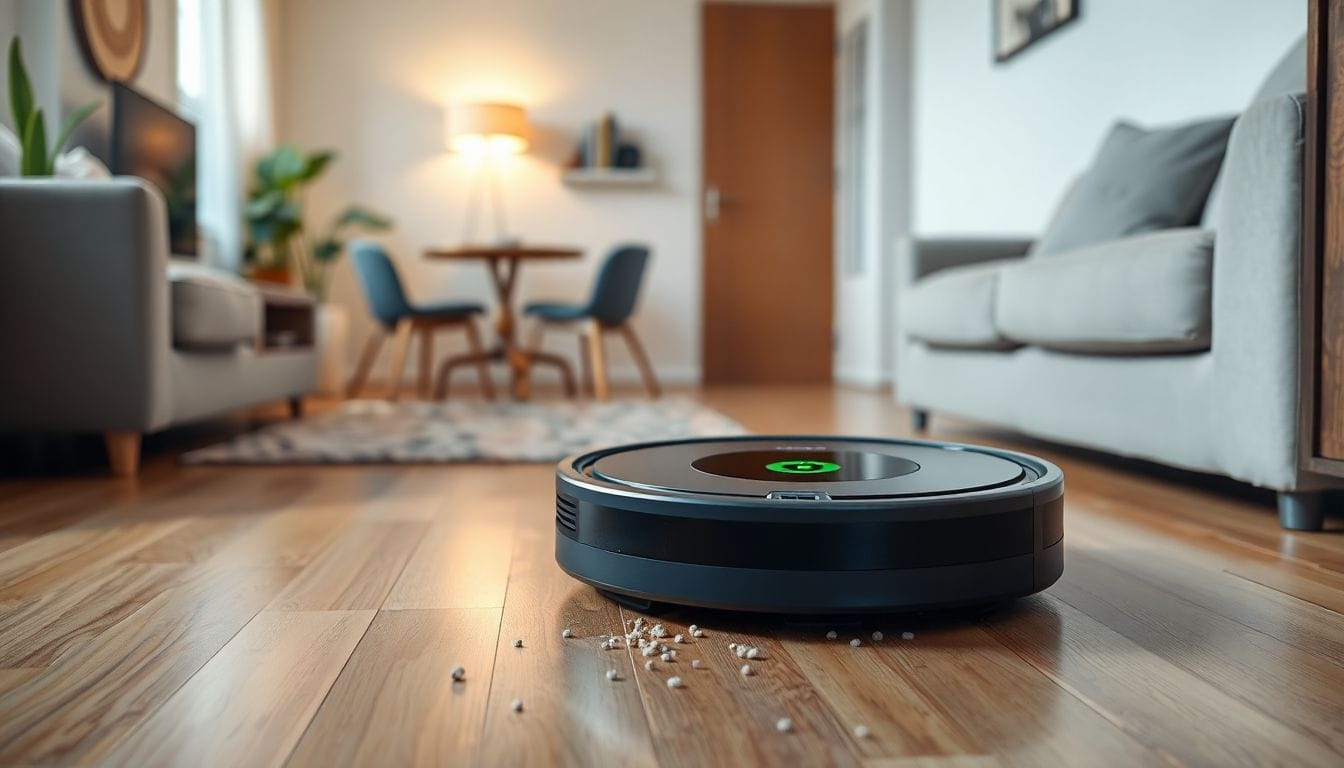
Roomba j Series Problems: Complete Troubleshooting Guide

Roomba j series problems typically stem from sensor malfunctions, battery degradation, or debris accumulation in the brush system — most issues resolve with basic maintenance within 15 minutes without professional service. The j series uses iRobot’s Precision Vision Navigation and advanced dirt detection sensors that require regular cleaning to maintain peak performance. Firmware updates address approximately 30% of reported navigation glitches and can be performed through the iRobot Home app. Understanding the specific error code displayed on your Roomba is the fastest path to diagnosis — error codes 0–15 indicate critical failures while codes 16–30 signal maintenance needs.
What Causes Roomba j Series Problems?
Roomba j series failures fall into three primary categories: mechanical, electrical, and software-related. Mechanical issues account for the majority of service calls and include clogged brush assemblies, jammed wheels, and debris-blocked sensor ports. Electrical problems center on lithium-ion battery degradation and corroded charging contacts. Software failures manifest as navigation errors, mapping glitches, and connectivity drops.
The leading cause of navigation failures in the j series is contamination of the PrecisionVision Navigation camera lens. This front-facing camera maps your home and identifies obstacles in real time — when dust, smudges, or pet hair obscure the lens, the robot cannot build accurate maps and may repeatedly bump into furniture or get stuck in corners. The camera requires a minimum illumination of 10 lux to function correctly, meaning dimly lit rooms can also trigger navigation errors unrelated to hardware faults.
Lithium-ion batteries in the Roomba j series begin losing maximum capacity after 400–600 charge cycles, which translates to roughly 18–24 months of regular use. Storing the vacuum at full charge in environments above 77°F (25°C) accelerates this degradation significantly. Additionally, the brush motor includes built-in thermal protection that shuts down the extraction system during prolonged operation on high-pile carpets, causing the vacuum to appear unresponsive mid-cycle.
Wi-Fi connectivity issues affect app control and mapping functions. The j series relies on a stable 2.4 GHz wireless connection to communicate map data, cleaning schedules, and firmware update packages to the iRobot Home app. Weak signal strength near the charging dock, router firmware incompatibilities, and network band switching are common culprits behind dropped connections and failed map syncing.
Roomba j Series Error Code Reference Table
The table below lists the most common error codes displayed by the Roomba j series, their meanings, severity levels, and the quickest fix for each. Use this reference alongside our complete vacuum troubleshooting hub for detailed diagnostic procedures.
| Error Code | Meaning | Severity | Quick Fix |
|---|---|---|---|
| 0 | Charging error | Critical | Clean charging contacts, check outlet |
| 1 | Unplugged bumper | Moderate | Press and release bumper physically |
| 2 | Wheel obstruction | Moderate | Clear debris from both wheels |
| 5 | Brush malfunction | Moderate | Remove and clean brush assembly |
| 6 | Cliff sensor failure | High | Clean cliff sensors with dry cloth |
| 8 | Fan failure | Critical | Contact iRobot support |
| 9 | Vacuum motor stalled | High | Empty dustbin, check for blockages |
| 10 | Dirty extractors | Low | Remove hair and debris from brushes |
| 14 | Bin full | Low | Empty dustbin completely |
| 15 | Navigation error | High | Reset map, restart cleaning cycle |
How to Fix Navigation and Mapping Problems
Navigation failures are the most frequently reported j series issue. The PrecisionVision Navigation system relies on a front-mounted camera that identifies furniture, walls, and obstacles using visual mapping — when this system malfunctions, the robot may clean the same area repeatedly, fail to return to its dock, or become stuck in corners. Follow these steps in order to diagnose and resolve navigation problems.
- Power off the Roomba completely by holding the CLEAN button for 10 seconds until the light ring shuts off.
- Locate the camera lens on the front upper panel and wipe it with a clean, dry microfiber cloth to remove dust and smudges.
- Check all four cliff sensors on the underside of the robot — blow out accumulated dust with compressed air.
- Reset the Wi-Fi connection by holding the SPOT and CLEAN buttons simultaneously for 5 seconds until you hear a tone.
- Open the iRobot Home app, navigate to your robot’s map settings, and delete the current map to force a fresh mapping cycle.
- Run the Roomba in a well-lit room — the Precision Vision system requires at least 10 lux of illumination to map accurately.
- Verify the vacuum’s firmware is current through Settings > Software Update in the iRobot Home app.
If navigation errors persist after completing all seven steps, perform a factory reset through the app. This erases all saved maps and schedules but resolves deeper software conflicts that standard resets cannot address. After a factory reset, allow the robot to complete three full cleaning cycles to rebuild an accurate map before evaluating whether the issue is resolved.
How to Fix Battery and Charging Issues
Battery problems typically manifest as the Roomba dying mid-cycle or showing 0% charge immediately after removal from the dock. The j series uses a 2,200 mAh lithium-ion battery that delivers approximately 75–90 minutes of runtime on a full charge when new. As cells degrade, runtime drops proportionally.
The root cause is straightforward: lithium-ion cells lose maximum capacity when stored at full charge in warm environments above 77°F (25°C). Over time, the battery management system’s capacity estimate drifts from the actual cell capacity, causing inaccurate charge readings and premature shutdowns. For related vacuum power issues, see our Roomba troubleshooting hub.
Diagnostic test: Run a cleaning cycle from 100% charge to complete discharge. A healthy battery delivers 90 or more minutes of runtime on hard floors. If runtime falls below 45 minutes on a full charge, the battery has reached end-of-life and requires replacement.
- Remove the battery cover on the underside of the Roomba and inspect the terminals for corrosion or discoloration.
- Clean corroded terminals with a cotton swab dipped in isopropyl alcohol (70% concentration or higher) — allow to dry fully before reassembly.
- Perform a recalibration cycle: dock the Roomba, charge to 100%, then run a cleaning cycle until the battery completely shuts down.
- Repeat the full calibration cycle three times to restore battery management system accuracy and improve charge reporting.
How to Fix Brush and Extraction System Problems
The j series uses two Multi-Surface Rubber Brushes that work together to agitate and lift debris from carpets and hard floors. Hair, string, and fiber wrap around the brush axles over time, creating friction that triggers error codes 5 and 10. Regular brush maintenance prevents motor strain and extends the life of the extraction system.
- Press the two yellow release tabs on the brush guard and lift the guard upward to access the extractors.
- Remove both rubber Multi-Surface Rubber Brushes and clear any hair wrapped around the center axle by slicing through it with the included cleaning tool.
- Pull back the yellow brush module and clean the brush bearings thoroughly using the yellow cleaning tool to remove packed debris.
- Check the vacuum inlet port for clogs — insert a long, slender object to dislodge compacted debris trapped behind the brush housing.
- Reassemble in reverse order, ensuring both brushes click securely into the bearing housing with an audible snap.
- Run a test cycle on a hard floor surface to confirm proper extraction rotation and verify no error codes appear.
When to Replace Parts vs. Replace the Vacuum
Not every malfunction warrants a new vacuum. The table below compares replacement part costs against the price of a new Roomba j7 ($350–$450) to help you decide whether a repair or replacement makes more economic sense. For similar cost-benefit analysis on other models, see our Roomba i series problems guide.
| Component | Lifespan | Replacement Cost | vs. New Vacuum |
|---|---|---|---|
| Battery | 18–24 months | $45–65 | Worth replacing |
| Front wheel module | 12–18 months | $15–25 | Worth replacing |
| Brush assembly | 6–12 months | $25–40 | Worth replacing |
| Main board | N/A | $120–150 | Check vacuum age |
| Full vacuum (j7) | 4–6 years | $350–450 | Consider replacement |
As a general rule, if the total cost of repairs exceeds 50% of a new vacuum’s price and your current unit is more than three years old, replacement offers better long-term value. Newer models include improved navigation algorithms, longer-lasting batteries, and better obstacle avoidance that reduce the frequency of problems you experience.
How to Prevent Roomba j Series Problems Recurring
Prevention is more effective than troubleshooting. A consistent maintenance routine dramatically reduces the frequency of error codes, navigation failures, and battery issues. These preventive measures complement the detailed procedures in our robot vacuum maintenance schedule guide.
- Schedule a bi-weekly maintenance routine: empty the dustbin, clean brushes, and wipe all sensors with a dry microfiber cloth.
- Store the Roomba in a climate-controlled area between 50–77°F (10–25°C) when not in use to protect battery chemistry.
- Keep the charging dock in an open area with at least 3 feet of clearance on each side to allow unobstructed navigation to and from the dock.
- Update firmware immediately when notifications appear — updates often include critical fixes for navigation and connectivity bugs.
- Run the Roomba at least twice weekly to prevent the battery from entering a deep discharge state, which permanently reduces cell capacity.
- Replace the filter every 2–3 months depending on pet hair exposure — clogged filters force the motor to work harder and trigger thermal protection shutdowns.
Maintenance Schedule Quick Reference
Use this schedule as your baseline for Roomba j series upkeep. Adjust intervals based on how frequently you run the vacuum and whether you have pets that shed heavily. Proper maintenance also protects your floors — learn more in our floor cleaning complete guide.
| Frequency | Task |
|---|---|
| After each use | Empty dustbin |
| Weekly | Clean brush assembly, wipe cliff sensors |
| Monthly | Deep clean filter, check wheel rotation |
| Quarterly | Battery calibration cycle, firmware check |
| Annually | Inspect charging contacts, replace filter |
Frequently Asked Questions
Q: Why does my Roomba j series keep stopping and saying “Clean bin”?
A: The j series uses a dustbin sensor that can trigger falsely when the bin is actually empty — this occurs when debris blocks the optical sensor lens inside the bin cavity. Remove the bin and wipe the interior sensor window with a dry cotton swab to restore accurate readings.
Q: How do I reset my Roomba j series when it won’t respond?
A: Hold the CLEAN button continuously for 10 seconds until the light ring turns off, then release. Wait 30 seconds before pressing CLEAN again to power on. This hard reset clears temporary software glitches without erasing your map or settings.
Q: Why is my Roomba j series making a grinding noise during cleaning?
A: Grinding noises indicate hair wrapped around the brush axle bearings or debris caught in the front caster wheel. Remove the brush module and inspect both bearing hubs for accumulated hair — use the included cleaning tool to slice through wrapped strands. The front caster wheel also requires periodic removal and cleaning of lint buildup.
Q: Can I use third-party replacement parts for my Roomba j series?
A: Third-party batteries and brush modules are compatible but vary significantly in quality — poorly manufactured batteries can trigger error codes or create safety hazards. iRobot recommends OEM replacement parts for critical components like batteries and recommends avoiding third-party options for any part requiring CE or UL certification for electrical safety.
References
- iRobot Corporation. (2024). Roomba j7/j7+ Error Code Reference. iRobot Home Support.
- iRobot Corporation. (2024). Roomba j Series Care and Maintenance Guide. iRobot Home Support.
- Tom’s Guide. (2024). iRobot Roomba j7+ Review. Tom’s Guide.
- U.S. Consumer Product Safety Commission. (2023). Home Appliance Safety Guidelines. CPSC.
- RTINGS. (2024). iRobot Roomba j7 Review: Test Results and Specifications. RTINGS.com.


