
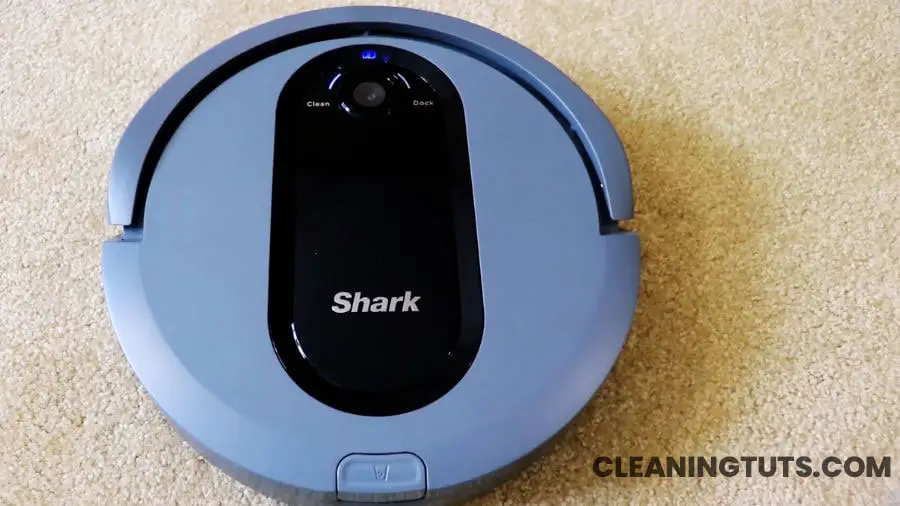
Shark IQ Robot AV970 Error Codes & Their Fixes

Error codes on the Shark IQ Robot AV970 alert you to specific component failures, obstructions, or sensor malfunctions so you can diagnose and resolve issues without professional service. This guide covers every error code from 2 through 26 with step-by-step fixes.
Each error code corresponds to a distinct problem: side brush obstructions trigger Code 2, suction motor failures cause Code 3, and cliff sensor blockages produce Code 7. Understanding these codes saves time and prevents unnecessary part replacements.
Shark IQ Robot AV970 Error Codes and Fixes
The Shark IQ Robot AV970 displays error codes spanning Codes 2 through 26. Each code refers to a specific component — side brush, drive wheel, brush roll, suction motor, bumper, cliff sensor, dust bin, or charging system — requiring targeted cleaning or part replacement.
Error Code 2
Obstruction Error of Side Brush, Drive Wheel & Brush Roll or Wheel Motor Failure
1. DOCK Light Red and Exclamation Light Flashing Red
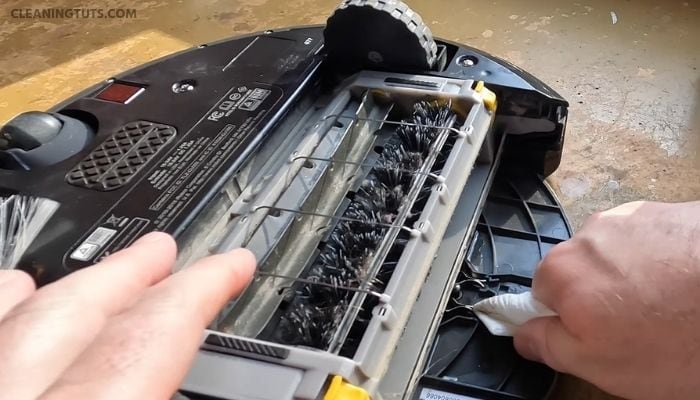
A stuck side brush triggers Error Code 2. Cleaning the side brushes resolves the issue in most cases.
Steps to clean the side brushes:
2. CLEAN Light Red and DOCK Light Flashing Red
The drive wheel is stuck due to debris or an obstacle preventing the axles from rotating freely. Clean the drive wheels and surrounding housing regularly to prevent this error.
Spin each wheel while dusting with a clean dry cloth to ensure free rotation.
3. CLEAN Light Blue and Exclamation Light Red Alternating or Flashing
The brush roll has a blockage. Spin the brush roll and remove any debris surrounding it. Lift the brush roll carefully and reinstall it — it must click into place on both sides to confirm proper installation.
Replace the brush roll every 6 to 12 months to maintain cleaning performance.
4. CLEAN Light Blue and DOCK Light Red and Exclamation Light Red Flashing
This indicates a wheel motor failure — a critical error. Contact Shark customer service immediately. Do not attempt to disassemble the motor unit.
Error Code 3
CLEAN Light Red and Exclamation Light Flashing Red
This signals a suction motor failure. Clear the dustbin and clean the filters. Remove any blockages in the airway between the plastic shield and the filter.
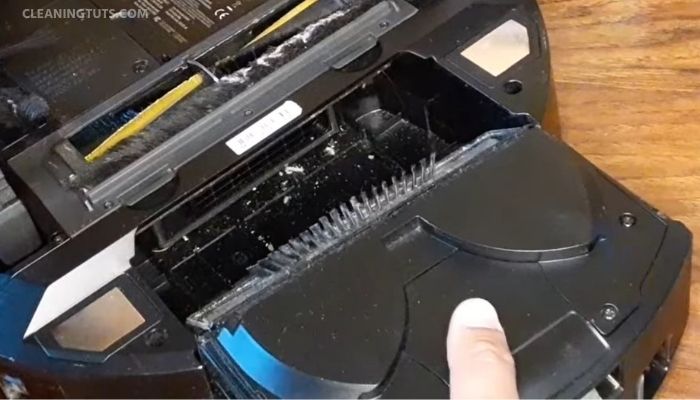
Use a soft brush or dry cloth to clean the filter area. Overfilled or infrequently emptied dustbins are a primary cause of suction motor failures in robot vacuums.
Steps to empty the dustbin:
Error Code 6
DOCK Light Flashing Red
Error Code 6 indicates the front bumper is jammed and cannot move in or out freely. Clean the bumper area and remove any obstacles blocking its movement.
Error Code 7
DOCK Light Blue and CLEAN Light Flashing Red
A cliff sensor error means the sensor cannot detect the floor surface correctly, preventing the robot from navigating near stairs or drop-offs. Move the unit to a clear location and clean all cliff sensors.
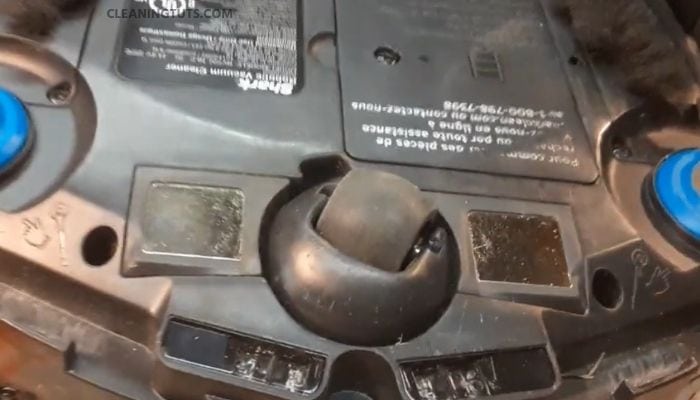
Dirt buildup on cliff sensors causes them to malfunction. Clean the sensors using a dry cloth, including the charging pads on the dock and beneath the robot.
Keep rugs and carpets at least 8 inches from stairs to prevent cliff sensor triggers. If rugs cannot be moved, use a BotBoundary magnetic strip to create a virtual barrier.
Error Code 9
DOCK Light Red and CLEAN Light Flashing Red
Error Code 9 indicates the dust bin is installed incorrectly. Remove the dust bin and reinsert it until you hear a distinct click. No installation is successful without that click.
Error Code 10
CLEAN Light Flashing Red
Error Code 10 means the robot is stuck on an uneven or obstacle-rich surface. Relocate the robot to a flat, level surface and restart the cleaning cycle.
Error Code 14
DOCK Light Red and CLEAN Light Flashing Blue
Error Code 14 is a BotBoundary magnetic strip error. The robot detects the boundary strip but cannot navigate past it correctly. Move the robot to a flatter surface away from the magnetic strip and restart.
For more details, see our Shark IQ Robot Error Code 14 fix guide.
BotBoundary strip placement guidelines:
Error Code 16
CLEAN Light Red and DOCK Light Blue Alternating
Error Code 16 indicates the robot is stuck with the front bumper unable to move freely. Relocate the robot to a clear area on a level surface and resume cleaning.
Error Code 21
CLEAN Light Red and DOCK Light Blue and Exclamation Light Red Flashing
Error Code 21 is a booting error. Power cycle the robot vacuum by turning it off and back on. This resolves most firmware boot-related faults.
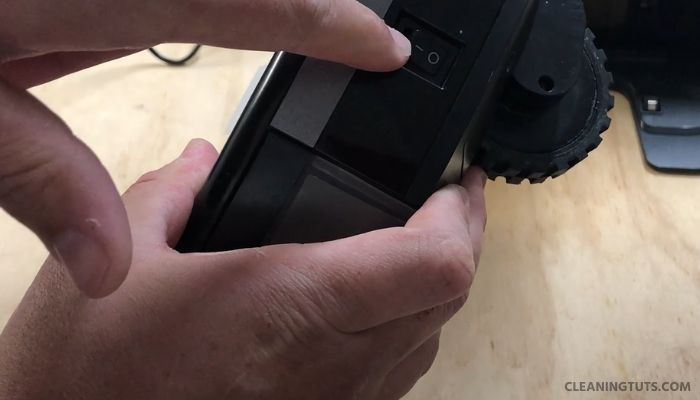
The power switch is on the back of the dock. Set it to OFF, hold the button for 10 seconds, then turn it back to ON to complete the reboot.
Reboot the router by unplugging it for 30 seconds and reconnecting. Allow several minutes for the router to fully restart before retrying the robot.
Error Code 23
CLEAN Light Blue and DOCK Light Red Flashing
Error Code 23 means the robot is not properly seated on the dock. Ensure the robot can return to the dock freely. Place it manually on the dock until you hear the click and the dock indicator turns blue.
For optimal dock placement, avoid thick carpets, direct sunlight, baseboards, and heating elements. The dock must be plugged in and unobstructed at all times.
Error Code 24
DOCK Light Blue and Exclamation Light Red Flashing
Error Code 24 indicates a charging problem. Verify the dock power cord is properly connected and the outlet is functioning. The dock indicator shows a green light when it has power.
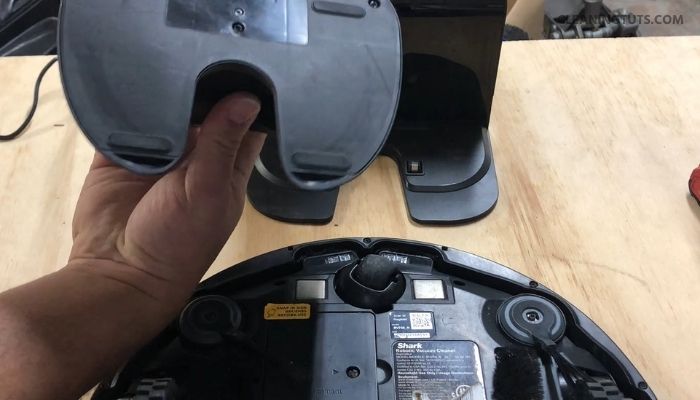
Dock placement requirements: level surface, no objects within 3 feet of the dock sides, and 5 feet from the dock front. Place the dock against a wall for stability.
Error Code 25
BATTERY ICON Red Flashing
Error Code 25 signals a low-battery condition. Place the robot on the dock to begin charging. If the robot cannot dock independently, position it manually on the charging contacts.
If the error persists after a full charge cycle, the battery or charging mechanism may require professional inspection. Repeated Code 25 errors can indicate charging system failures that warrant service support.
Error Code 26
DOCK Light Red and Exclamation Light Flashing Red
Error Code 26 means the dust bin is clogged with compacted dirt or debris, preventing the unit from operating. Remove the dustbin, empty it completely, and clean the interior with a dry cloth before reinstalling.
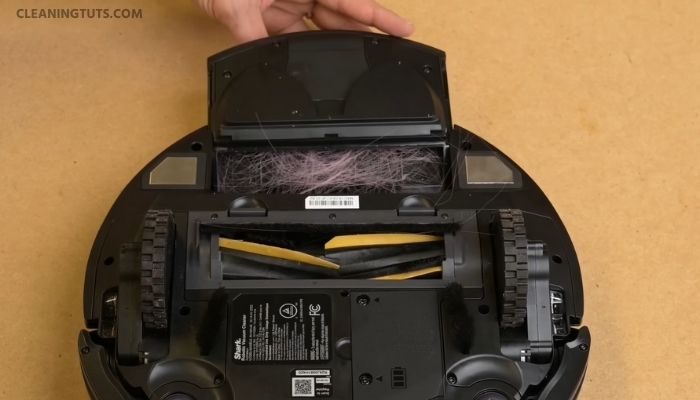
Reinsert the bin until it clicks firmly into place.
Dock Placement and Maintenance Quick Reference
Proper dock placement prevents multiple error codes including 7, 14, 23, and 24. Follow these specifications for reliable robot operation:
| Requirement | Specification |
|---|---|
| Side clearance (each side) | 3 feet (91 cm) |
| Front clearance | 5 feet (152 cm) |
| Distance from stairs | 8 inches (20 cm) minimum |
| BotBoundary strip from dock | 10 feet (3 m) minimum |
| Brush roll replacement interval | Every 6–12 months |
| Avoid surfaces | Thick carpets, direct sunlight, heating elements, baseboards |
Error Code Summary
| Code | Indicator | Cause | Primary Fix |
|---|---|---|---|
| 2 | DOCK Red + ! Red flashing | Side brush, drive wheel, brush roll, or wheel motor issue | Clean brushes and wheels; replace if damaged |
| 3 | CLEAN Red + ! Red flashing | Suction motor failure | Empty dustbin and clean filters |
| 6 | DOCK Red flashing | Front bumper jammed | Clear bumper area of obstacles |
| 7 | DOCK Blue + CLEAN Red flashing | Cliff sensor blocked or triggered | Clean sensors; move rugs 8+ inches from stairs |
| 9 | DOCK Red + CLEAN Red flashing | Dust bin improperly installed | Reinsert dustbin until it clicks |
| 10 | CLEAN Red flashing | Robot stuck on uneven surface | Relocate to a flat, level surface |
| 14 | DOCK Red + CLEAN Blue flashing | BotBoundary magnetic strip error | Move robot away from strip; check strip placement |
| 16 | CLEAN Red + DOCK Blue alternating | Robot stuck; bumper unable to move | Relocate robot to clear area |
| 21 | CLEAN Red + DOCK Blue + ! Red flashing | Booting error | Power cycle the robot; reboot router |
| 23 | CLEAN Blue + DOCK Red flashing | Robot not properly on dock | Reposition on dock; verify blue indicator |
| 24 | DOCK Blue + ! Red flashing | Charging problem | Check power cord; verify dock placement specs |
| 25 | BATTERY ICON Red flashing | Low battery or battery malfunction | Place on dock to charge; contact service if persistent |
| 26 | DOCK Red + ! Red flashing | Dust bin clogged with debris | Remove, empty, and clean dustbin; reinstall |
For additional troubleshooting guides, browse our Vacuum Troubleshooting Master Hub or the Shark Vacuum Troubleshooting Hub.
Wrapping Up
Every Shark IQ Robot AV970 error code from 2 through 26 points to a specific, solvable problem. Most errors resolve with cleaning and repositioning alone. Codes 2, 3, and 7 are the most frequently encountered and are typically fixed without any part replacement.
Keep the dustbin empty, sensors clean, and brush roll replaced every 6–12 months to prevent the majority of these errors from occurring. Proper dock placement — away from thick carpets, direct sunlight, and stair edges — eliminates Code 7, Code 14, Code 23, and Code 24 errors.
For error codes affecting other Shark models, search the Shark Vacuum Troubleshooting Hub or the Vacuum Troubleshooting Master Hub. The Cleaning Glossary also defines technical terms used across all troubleshooting articles.
References
- SharkNinja Operating Instructions. (2023). Shark IQ Robot Series AV970. SharkNinja. https://www.sharkclean.com/support/iq-robot-series-av970/


